Now you want to see how the grades compare to each other. Under the Conditional Formatting tab, select the Icon Set called 3 Symbols (Circled). Hint: The names of the icon sets will appear when you hover over them.
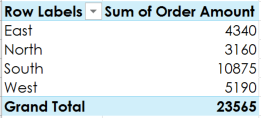
We want to answer the question What is the total amount sold in each region? To do this, select Region and Order Amount. When you’re finished, your workbook should look like this:
In the Rows area, remove Region and replace it with Salesperson.
Add Month to the Columns area.
Change the number format of cells B5:E13 to Currency. Note: You might have to make columns C and D wider in order to see the values
In the Rows area, remove Region and replace it with Salesperson.
Insert a PivotChart, and choose the type Line with Markers.
Insert a slicer for Regions.
Use the slicer to only show the South and East regions.
Change the PivotChart type to Stacked Column.
In the PivotChart Fields pane to the right, add Month to the Legend (Series) area. Note: You can also click the PivotTable and then add Monthto the Columns area; the result will be the same.
Click the Challenge tab in the bottom-left of the workbook.
In cell B8, create a function that calculates the average of the sales in B2:B7.
The workbook shows Dave’s monthly sales amounts for the first half of the year. If he reaches a $200,000 mid-year average, he will receive a 5% bonus. Use Goal Seek to find how much he needs to sell in June in order to make the $200,000 average


 download

0 comments