

- MS Project file with schedule and allocated resources with associated costs (50 points)
- MS Word file with report of project budget and resource management (50 points)
- Click on view, resource sheet.
- Enter the resource name, whether it is a human resource, a cost, or a material.
- Include hourly rate or other costing method.
- For materials, designate the resource as work and identify cost for use (i.e., cost per yard).
- Choose view—Gantt chart.
- Select resource tab
- Highlight the first task.
- Click on the double headed icon on the upper tool bar (assign resources), or click Alt-F10.
- In the resource assignment window, select the appropriate resource for each activity.
- Right click above last column.
- Select insert column.
- Select costs.
- Click on view, resource sheet—Resource(s) in red color are overallocated.
- Click on view, resource usage—Resource(s) in red color are overallocated resource(s) by date.
- Click on project, reports. A dialog box appears, click on assignments then select. Then click the report for overallocated resources, and then select to print or view.
- Remember with resources you need to assign how much time (by a percentage) each resource will be allocated to each activity. Simply lowering a given percentage may clear an overallocation, but this is not possible. Overallocations usually mean that the project requires an additional resource or the timing of the tasks has to be made concurrent.
- Explain your approach to estimating the project cost (e.g., top down, bottom up, etc.) and why that method was chosen.
- Create a table that shows the original budgeted cost (from the charter) and the actual budgeted cost (side by side). Include line items for labor, materials, contract, equipment, travel cost, and so on. Use the costs you now have in your schedule to compare to your charter costs.
- Compare the budget from the charter to the final budget, and explain any variances that occurred from your original budgeted cost in the project charter and the current project cost (include your original estimated cost for the project).
- Explain your budget contingency plan and how much is budgeted for contingency.
- Explain the results of your resource assignments. Did you assign enough people to the project? Were there any resources overallocated? What approach will you take to fix any allocation problems?
- Develop a plan to manage your project team, and define how you will motivate your team and how you will handle team conflicts.
- MS Project file with schedule and allocated resources with associated costs (50 points)
- MS Word file with report of project budget and resource management (50 points)
Follow these steps to set up your Course Project with Microsoft Project 2016.
Step 1: Allocate Resources
Once you have the WBS created in MS Projects, assign resources to each activity. Remember, only assign resources to activities, not summary tasks. Before you can do this, you need to create a resources sheet in MS Projects.
To Create a Resource Sheet, do the Following.
To assign your resources to the aligned tasks in MS Project, follow the steps below.
To assign Resources
Repeat for all resources and activities according to the resource list above.
Step 2: Review Costs
The costs will appear and roll up to summary tasks. You have now created your preliminary budget.
Step 3: Analyze Your Resource Allocation and Assignments
There are several methods to check for overallocated resources.
Step 4: Project Budget (Cost Management)
Step 5: Resource Management
Follow these steps to set up your Course Project with Microsoft Project 2016.
Step 1: Allocate Resources
Once you have the WBS created in MS Projects, assign resources to each activity. Remember, only assign resources to activities, not summary tasks. Before you can do this, you need to create a resources sheet in MS Projects.
To Create a Resource Sheet, do the Following.
- Click on view, resource sheet.
- Enter the resource name, whether it is a human resource, a cost, or a material.
- Include hourly rate or other costing method.
- For materials, designate the resource as work and identify cost for use (i.e., cost per yard).
To assign your resources to the aligned tasks in MS Project, follow the steps below.
To assign Resources
- Choose view—Gantt chart.
- Select resource tab
- Highlight the first task.
- Click on the double headed icon on the upper tool bar (assign resources), or click Alt-F10.
- In the resource assignment window, select the appropriate resource for each activity.
Repeat for all resources and activities according to the resource list above.
Step 2: Review Costs
- Right click above last column.
- Select insert column.
- Select costs.
The costs will appear and roll up to summary tasks. You have now created your preliminary budget.
Step 3: Analyze Your Resource Allocation and Assignments
There are several methods to check for overallocated resources.
- Click on view, resource sheet—Resource(s) in red color are overallocated.
- Click on view, resource usage—Resource(s) in red color are overallocated resource(s) by date.
- Click on project, reports. A dialog box appears, click on assignments then select. Then click the report for overallocated resources, and then select to print or view.
- Remember with resources you need to assign how much time (by a percentage) each resource will be allocated to each activity. Simply lowering a given percentage may clear an overallocation, but this is not possible. Overallocations usually mean that the project requires an additional resource or the timing of the tasks has to be made concurrent.
Step 4: Project Budget (Cost Management)
- Explain your approach to estimating the project cost (e.g., top down, bottom up, etc.) and why that method was chosen.
- Create a table that shows the original budgeted cost (from the charter) and the actual budgeted cost (side by side). Include line items for labor, materials, contract, equipment, travel cost, and so on. Use the costs you now have in your schedule to compare to your charter costs.
- Compare the budget from the charter to the final budget, and explain any variances that occurred from your original budgeted cost in the project charter and the current project cost (include your original estimated cost for the project).
- Explain your budget contingency plan and how much is budgeted for contingency.
Step 5: Resource Management
- Explain the results of your resource assignments. Did you assign enough people to the project? Were there any resources overallocated? What approach will you take to fix any allocation problems?
- Develop a plan to manage your project team, and define how you will motivate your team and how you will handle team conflicts.
I need a lot of help. I have not been getting a good grade so far on this project. I have also attached a file of what I have done and the data that you can use. Please feel free to make any changes that would help. This is 2 different parts that needs to be done. Please reach out to me if need a better understanding on what to do.
PART 1:
Deliverables for Week 4:
- WBS in PowerPoint Slide or inserted into MS Word (50 points)
- MS Project file at Gantt View (50 points)
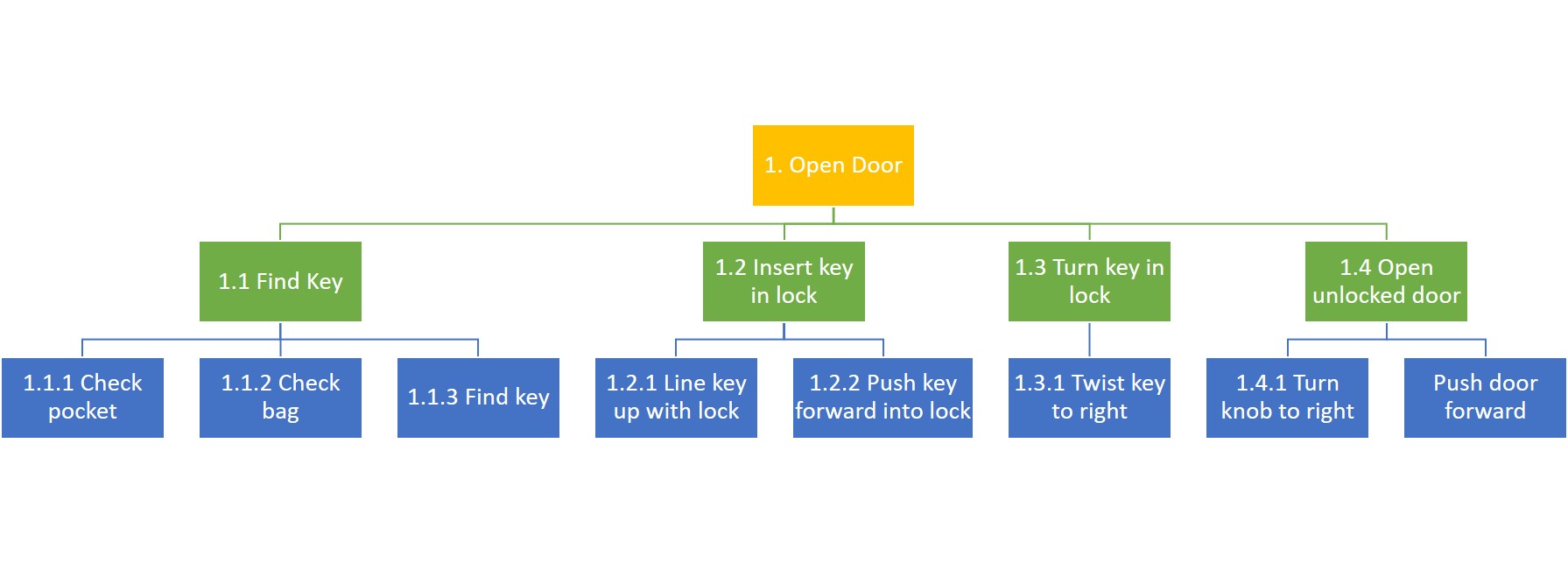
Work Breakdown Structure (WBS): A hierarchical decomposition of the total scope of work to be carried out by the project team to accomplish the project objectives and create the required deliverables.
For this week, you will create a work breakdown structure (WBS) for the project.
Remember that the WBS starts with major deliverables (included in the scope statement) at the highest level. The lower levels have the work package required to complete those deliverables. Review the textbook and the PMBOK® Guide for some suggestions on how to create a WBS.
From your work breakdown structure, develop a project task list with dependencies and add durations, using MS Project.
- Develop the work breakdown structure.
- Your WBS should have a minimum of 50–100 line items in MS Project and be three levels deep.
- Make sure to use verb-object task names (i.e., “Develop software”).
- MS Project Schedule
- Enter tasks in MS Project.
- Create the predecessor relationships.
- Do not link summary tasks or assign resources.
Set Up Schedule in MS Project
- Set the basic project information.
- Open MS Project.
- Click on file (top left), select save as and enter the file name as (your name) cp1. For example, SmithJanecp1.mpp.
- Click on the project area and select project information. In the project information dialogue box, set the start date of your project.
- Leave other dates as is. Click on OK.
- Click on format and click the check box beside project summary task. Now your first summary task is your project name.
- Set basic Gantt chart format (use also for tracking Gantt chart view).
- Right click on the mouse in the gray area of the Gantt chart on the right side of the screen where the dates in month and days are for the menu, and select Timescale.
- In the Timescale dialogue box,
- select the middle tier tab and set units to quarters (months) (weeks);
- aelect the bottom tier tab and set units to months (weeks) (days); and
- Click on OK.
- Set up the default task units to weeks.
- Click file, and then click options.
- In the project options dialog box, click schedule.
- Under scheduling options in this project, set the following.
- New tasks created select auto scheduled
- Duration is entered in select weeks (days)
- Default task type select fixed duration
- Click OK to close the dialog box.
Once you have set the defaults, we are ready to move on. If you have not done so already, you need to create the project’s work packages and activities from the project’s WBS. Once this is done, insert your project name, deliverables, work packages, and activities in the column task name in MS Project.
- Enter the task durations in the duration column.
- Enter the predecessor(s) for each task in the predecessors column. You can also highlight the tasks and click the link icon in the ribbon.
- If there is no duration or predecessor listed, leave the column blank. Note: If you do not see the predecessors column, move the vertical line between the entry form and the Gantt chart to the right to reveal the column. Click on the line and drag to move it. Columns can be expanded or contracted individually to accommodate information the same way column width is adjusted in MS Excel.
Note: Analyze Your Schedule and Network Diagram
To see the network diagram, click on view, then select network diagram. Activities on the critical path are outlined in red, whereas noncritical path activities are outlined in blue.
PART 2:
DELIVERABLES:
- Resource Allocation: MS project file (.mpp) updated with resource assignments and cost
- Preliminary Budget: MS Word file with a report of project budget and resource management
For additional instructions and guidelines, refer to the Course Project Overview page, located under Introduction and Resources.
Part 1: Project Budget (Cost Management)
- Explain your approach to estimating the project cost (e.g., top down, bottom up, etc.) and why that method was chosen.
- Create a table that shows the original budgeted cost (from the charter) and the actual budgeted cost (side by side). Include line items for labor, materials, contract, equipment, travel cost, and so on.
- Compare the budget from the charter to the final budget, and explain any variances that occurred from your original budgeted cost in the project charter and the current project cost. (Include your original estimated cost for the project.)
- Explain your budget contingency plan and how much is budgeted for contingency.
Part 2: Resource Management
- Explain the results of your resource assignments. Did you assign enough people to the project? Were there any resources overallocated? What approach will you take to fix any allocation problems?
- Develop a plan to manage your project team, and define how you will motivate your team and how you will handle team conflicts.
- What structure would you select for your project: functional, weak matrix, balanced matrix, strong matrix, or pure project? Why?

0 comments